
Keyboard shortcuts
Hacker Sidekick is built to be driven from the keyboard. Most shortcuts use a platform command key — ⌘ Command on macOS, Ctrl on Windows and Linux — so the same muscle memory works everywhere.
Everything in the Customizable shortcuts table can be rebound or disabled in Settings → Keyboard shortcuts. The window, editor, and explorer shortcuts below that are fixed.
Customizable shortcuts
Open Settings → Keyboard shortcuts to change any of these — click a binding, press the new combination, or clear it to disable the command. Bindings are account-global and apply to every window.
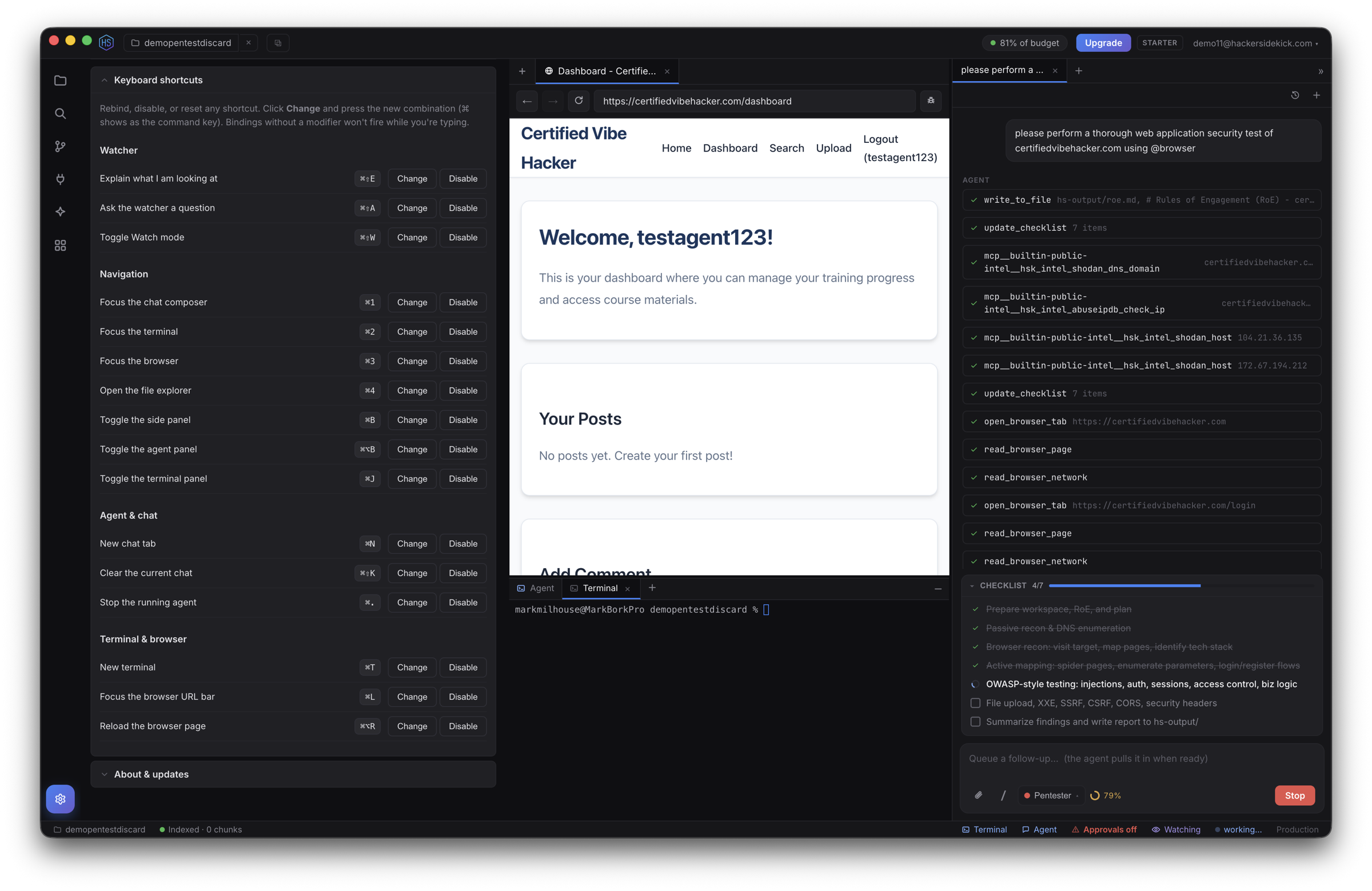
Navigation
| Action | macOS | Windows / Linux |
|---|---|---|
| Focus the chat composer | ⌘1 | Ctrl+1 |
| Focus the terminal | ⌘2 | Ctrl+2 |
| Focus the browser | ⌘3 | Ctrl+3 |
| Open the file explorer | ⌘4 | Ctrl+4 |
| Toggle the side panel | ⌘B | Ctrl+B |
| Toggle the agent panel | ⌘⌥B | Ctrl+Alt+B |
| Toggle the terminal panel | ⌘J | Ctrl+J |
Agent & chat
| Action | macOS | Windows / Linux |
|---|---|---|
| New chat tab | ⌘N | Ctrl+N |
| Clear the current chat | ⌘⇧K | Ctrl+Shift+K |
| Stop the running agent | ⌘. | Ctrl+. |
Terminal & browser
| Action | macOS | Windows / Linux |
|---|---|---|
| New terminal | ⌘T | Ctrl+T |
| Focus the browser URL bar | ⌘L | Ctrl+L |
| Reload the browser page | ⌘⌥R | Ctrl+Alt+R |
Watch mode
These drive the passive monitor. "Explain" and "Ask" work on whatever you're focused on — the open file, the terminal's recent output, or the current browser page.
| Action | macOS | Windows / Linux |
|---|---|---|
| Explain what I'm looking at | ⌘⇧E | Ctrl+Shift+E |
| Ask the watcher a question | ⌘⇧A | Ctrl+Shift+A |
| Toggle Watch mode | ⌘⇧W | Ctrl+Shift+W |
Window & app
| Action | macOS | Windows / Linux |
|---|---|---|
| New window | ⌘⇧N | Ctrl+Shift+N |
| Close the active tab / terminal (the window when nothing's left) | ⌘W | Ctrl+W |
| Save the active editor | ⌘S | Ctrl+S |
| Zoom in / out / reset | ⌘+ / ⌘- / ⌘0 | Ctrl+ + / Ctrl+ - / Ctrl+0 |
Zoom scales the whole app — the interface and the built-in browser views — together, so screenshots and page inspection stay in sync. It's available from the View menu too.
In the chat composer
| Action | Keys |
|---|---|
| Send the message | Enter |
| New line (without sending) | ⇧Enter |
Attach context (file / folder · @browser · @terminal) | @ |
Open the slash menu (Skills · /new · /clear · /reindex · /help) | / |
| Paste an image (screenshot) or a copied file as an attachment | ⌘V / Ctrl+V |
| Reference a file/folder | drag it from the Explorer into the box |
While the agent is working, anything you type is queued and folded in at the next good stopping point — you never have to wait to line up a follow-up.
In the Explorer
| Action | Keys |
|---|---|
| Toggle a file into the selection | ⌘-click / Ctrl-click |
| Select a range | ⇧-click |
| Move the selection to Trash | Delete, or ⌘⌫ / Ctrl+Backspace |
| Clear the selection | Esc |
| Move files | drag a node (or a multi-selection) onto a folder |
| New file/folder · Rename · Delete · Copy path | right-click |
Tabs
Drag a tab to reorder it — in the chat, terminal, and center (editor/browser) panes.
See also
- Watch mode — the passive monitor the Watcher shortcuts drive
- The agent & chat — the composer,
@-mentions, and/-commands - The app & first run — install, sign-in, the window layout