
The agent & chat
The panel on the right is your agent. Tell it what you're working on and it does the work in your workspace while you watch every step: the text it writes and each tool it runs appear in order, so you always see what happened.
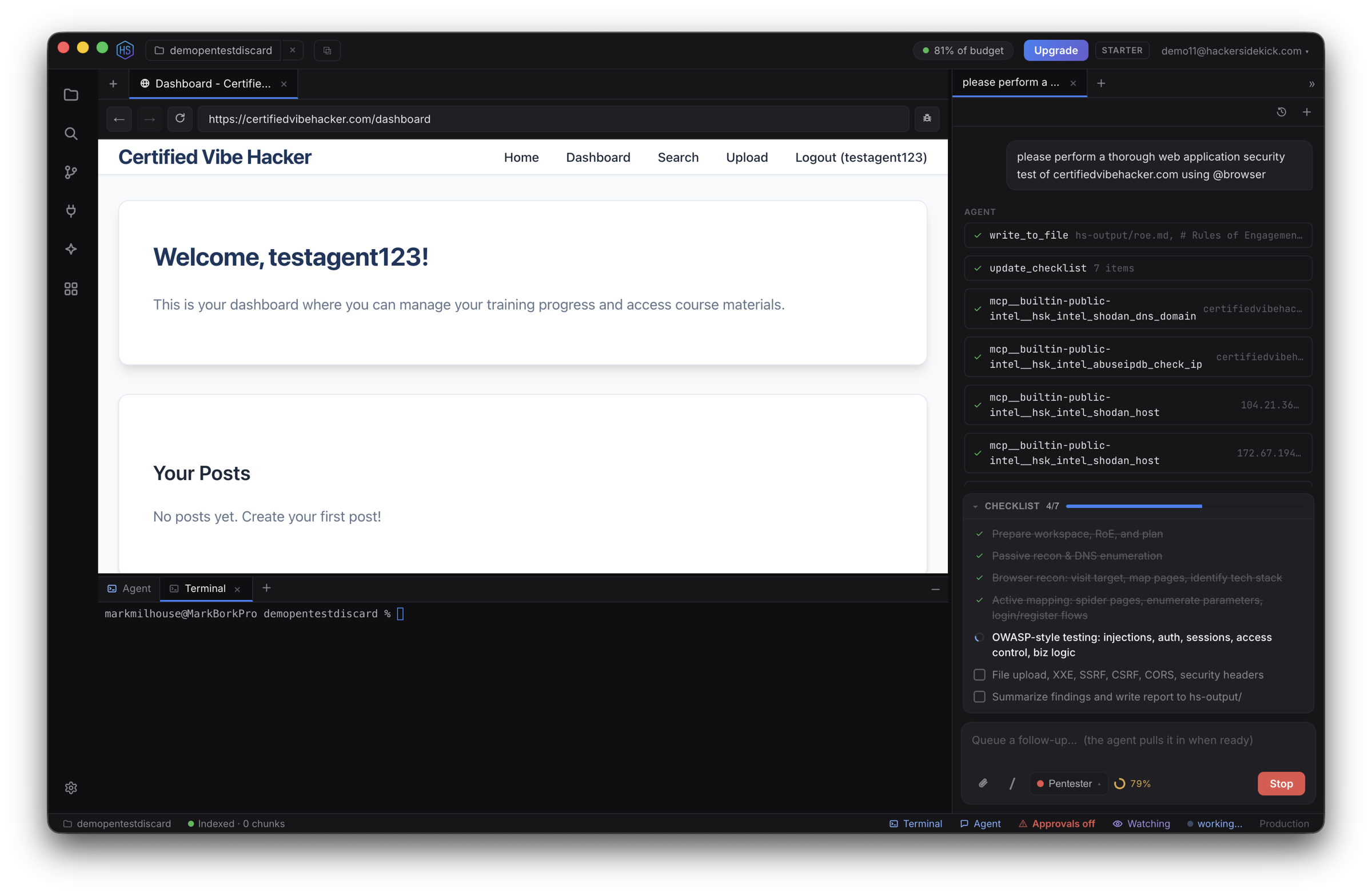
What the agent can do:
- Read and edit files — open, read, and modify any file in the workspace; make precise edits or write new files (see Files & the editor).
- Run commands — execute shell commands in the visible terminal, start long-running jobs, and drive interactive processes like REPLs,
ssh, andmsfconsole(see Terminals). - Drive the built-in browser — open pages, read the DOM and network traffic, inspect storage, and operate the page (see Browser control).
- Search the codebase — by keyword or by meaning (see Files & the editor → indexing).
- Inspect any file type — text, images (which it can actually see), PDFs, SQLite databases, and raw binaries (hexdump + strings).
- Know your environment — it's aware of your OS, hardware, and the security & dev tools installed on your machine (see Environment survey), so it reaches for what you already have.
- Search the web and call your MCP tools, Skills, and Integrations.
- Delegate — spin up sandboxed sub-agents and workers to run larger, parallelizable jobs (see Sub-agents & workers).
The agent has 41 built-in tools plus any tools you connect over MCP. It runs a native tool-calling loop with context-window management and concurrent fan-out/join — independent tool calls in one turn run together.
Anything destructive asks first. Risky commands, edits to protected files, running arbitrary browser JavaScript, intercepting traffic, and reading files outside the workspace all pause for your approval — see Security modes & approvals.
Multiple agents (chat tabs)
Open several agent tabs with the + at the top of the chat panel (or ⌘N / Ctrl+N) — each is an independent conversation that runs on its own, so you can have one agent auditing code while another does recon. Switch between them by clicking a tab; close one with its ×.
The composer
At the bottom of each chat is the composer:
- Type a message and press Enter to send (⇧Enter for a new line). While the agent is working, anything you type is queued as a follow-up and folded in when the agent reaches a good stopping point.
/opens the slash menu — run a Skill, start a new task (/new), clear the conversation (/clear), re-index (/reindex), and/help.@attaches context — a file or folder by name, the current browser page (@browser), or a terminal (@terminalfor the tab you're focused on, or@terminal:<id>for a specific one; it attaches recent commands + scrollback).- Attach files with the paperclip (any file, from anywhere on disk), or paste an image or copied files straight into the box. Images are sent to the agent as something it can see.
- Security mode — a selector (default Generalist) sets the agent's persona for that conversation (see Security modes).
Reading the agent's work
- Interim notes the agent makes between tool calls are shown in a lighter style; its final answer stands out.
- Each tool call is a collapsible row — expand it to see the full input and output.
- Copy any response with the copy button that appears when you hover it.
- A live indicator shows what the agent is doing right now ("Reading…", "Running…", "Opening…") and how long it's been working. Stop it any time with ⌘. / Ctrl+.
Sub-agents & workers
Delegation is for parallel work — the agent splits off helpers only when there are two or more independent sub-tasks it can run at once; otherwise it just does the work itself. When it does delegate:
- Sub-agents do read-only investigation (gathering facts) without cluttering the main conversation.
- Workers take a bounded task and propose file changes — but a worker's writes go to a scratch area and are shown to you for review-and-merge before anything touches your workspace. You approve or discard the proposed changes.
Each delegated agent runs in its own security mode, and nested agent activity appears inline in the chat so you can follow along. Workers and sub-agents run concurrently (capped) and can't take live side-effecting actions (terminal, page operation) — those stay with the primary agent you're watching.
Task checklist & questions
For multi-step work the agent keeps a live checklist above the composer so you can see the plan and progress. When it genuinely needs a decision from you, it can pause and ask a question with multiple-choice options (single- or multi-select, plus a free-text "Other") rather than guessing. Every question card also offers "Let the agent decide" — pick it and the agent stops asking and runs autonomously for the rest of that conversation, making the reasonable call itself each time.
Task history
Your past tasks are kept per workspace. Open the history menu in the chat tab strip to search, resume, or delete an earlier task — pick one up where you left off, with its full transcript intact, instead of starting over.
Engagement output
The agent organizes its artifacts under an hs-output/ folder in your workspace — findings, reports, screenshots, and downloads — so a piece of work leaves a clean, reviewable trail you own. It links these in chat; click to open them in the editor.