Skip to content

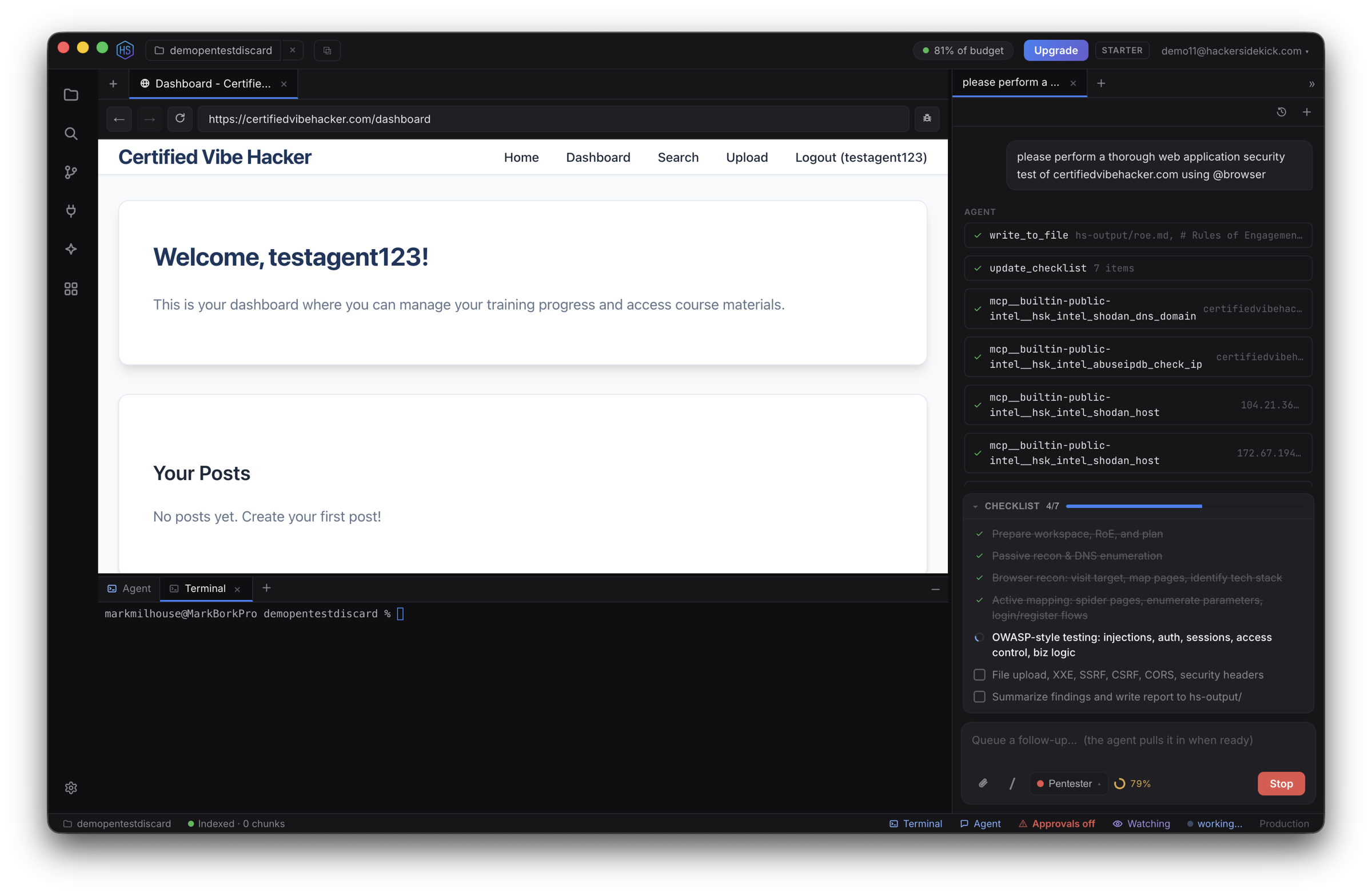
Editor and assistant features for security work

Hacker Sidekick is useful for blue, purple, and red team work, secure development, and review, because you get a full editor, terminal, and AI assistant in one product.

The sections below are a concise overview of what the shipping app includes. For sign-in, default URLs, and the model endpoint, start with the Hacker Sidekick app.

Workbench: editor, repo, and project

The workbench is the file and project surface: folders, open editors, panels, and commands.

  • Version control (Git) - Source Control for stage, commit, and push, diffs, file history, branches, and merges. You keep a clear trail when you triage incidents, review suspicious changes, or prepare patches.
  • Workspaces - Multi-root workspaces, folder-specific settings, and the trusted / restricted workspace model to reduce risk when you open code from an untrusted source.
  • Syntax, semantics, and linting - Syntax highlighting and, where a language extension provides it, Go to Definition, find references, and the Problems view for diagnostics (linters, compilers, and security tools wired as tasks or language servers). Semgrep and other scanners often integrate as CLI tasks or extensions.
  • Previews and reading - Markdown preview and other preview or simple browser flows from the workbench and from extensions, so you can read reports, READMEs, and PoC notes next to the terminal.
  • Terminals and tasks - The integrated terminal runs in the same window as the repo. Use it for one-off curl checks, test harnesses, package managers, and your usual CLI tools without leaving context. Treat shells the same as any production shell for secrets and path safety.

Extensions - You can add compatible editor extensions the same way as in other modern code editors, subject to your org policy, to add more languages, debuggers, and static analysis.

AI assistant: modes, tools, MCP, auto-approve, and checkpoints

The AI assistant is built into the app. Configure it under Hacker Sidekick in settings.

Model Context Protocol (MCP)

MCP runs separate tool servers (local processes) that the model can call through the assistant. That is how you connect scanners, issue trackers, internal HTTP APIs, or custom scripts without pasting everything into the prompt.

MCP is on by default. In MCP Servers settings you can turn it off if you do not need tool servers and want to reduce token use. Add global or project server definitions, use the MCP tab in the task sidebar to manage refresh, connection status, and Always allow on individual tools when you trust that server and tool.

The Marketplace tab in the Hacker Sidekick side panel lists MCP servers and modes you can add to the product. Treat catalog entries like any other third-party software: install only from sources you trust, and review what each MCP exposes to the model before you grant access.

MCP is an open protocol. Your security review should focus on which servers and tools you allow on sensitive repositories.

Auto-approve

Tool use and terminal commands can require you to click Approve each time, or you can use auto-approval to speed up trusted workflows.

  • Settings → Auto-Approve (and the Auto-approve control in the chat view) - Choose what to auto-approve: file edits, terminal commands, subtasks, and MCP tool use. For MCP tools, turn on the MCP item under auto-approve and use the Always allow toggle per tool in the MCP server view for steps you are willing to skip confirmation on.
  • The chat UI can show a countdown before auto-approving. You can stop typing in the field to avoid accidental approval while the timer runs.
  • Limits - Hitting a request or cost cap under auto-approve can pause the task. The UI offers Reset and Continue if you want to clear the count and go on. Treat that as a policy decision, not a free pass in production systems.

Security - In unfamiliar repositories or when commands could touch credentials or the network, keep approval manual. Auto-approving MCP tools is powerful and should match your org access policy.

Checkpoints

Checkpoints take snapshots of the task file state so you can roll back before risky refactors, experimental edits, or malware-adjacent work.

Automatic checkpoints are on by default. In Settings → Checkpoints you can change the checkpoint initialization timeout if a very large repository needs more time to initialize, or turn checkpoints off entirely if a task is waiting too long on startup.

  • In the task timeline, use Restore checkpoint, View changes since this checkpoint, and related actions when you want a known-good state. Editing an older message can offer to restore the checkpoint for that point in the conversation.

Modes, slash commands, skills, and codebase context

  • Modes, slash commands, skills, and worktrees - Modes and slash commands structure repeatable work. Skills (global and project) add reusable playbooks. Worktrees support parallel lines of work where configured.
  • Custom tools (experimental) - Under Settings → Experimental, Enable custom tools lets the assistant load TypeScript or JavaScript tools from .roo/tools in the project (or a global user directory that the settings describe). That is off by default. When you enable it, those tools are auto-approved, so use it only in environments and repos you trust.
  • Codebase and indexing - The assistant can use codebase context and embeddings from the Hacker Sidekick service when you use the default model configuration.

Connection: public account, enterprise base URL, and API keys

Public account (browser sign-in)

The public path uses a browser flow against your portal origin. After you sign in, the app comes back over a custom URL scheme with a session suitable for the model endpoint.

If you already pasted an API key in Settings → Connection and want a public account instead, use the in-app Sign in with a public Hacker Sidekick account instead control, which nudges you toward the browser sign-in path.

Enterprise server (API key and base URL)

A private enterprise or self-hosted OpenWebUI-compatible (or other OpenAI-compatible) host is configured in Connection.

  • API base URL - Your administrator gives you a URL. It must match the path shape the client builds (for example a host that expects .../v1/... vs one that uses .../api/v1/... without a duplicated segment). Wrong bases cause 404 and 401 behavior. Follow their runbook, not a generic guess.
  • API key - A per-user key from the enterprise web app (often values like sk-...), used as a Bearer token. It is not the same as server-side secrets (for example internal JWT signing or container environment secrets meant only for the host).

How to get an API key on an enterprise server

Your host may label steps differently; the common pattern on OpenWebUI-compatible and Hacker Sidekick Enterprise-style UIs is:

  1. Open the web UI URL in a browser (the same host you will use in Connection → API base URL).
  2. Sign in with the user account your administrator created.
  3. Open the user or account settings (for example the top-right menu) → API Keys (or Account → API keys). Some teams only let admin-level users create keys.
  4. Create a key and copy the secret once into a password manager, then paste it into Hacker Sidekick → Settings → Connection → API key in the desktop app.

Do not use operator-only deployment secrets (for example a SECRET_KEY or WEBUI_SECRET_KEY that was never meant for client use). If GET models or chat fails, fix URL shape and key type per your runbook before changing a dozen other settings. Your org deployment guide (for Azure or on-premises Hacker Sidekick Enterprise stacks) is the source of truth for paths and key rules.

Reset and switch between account types

"Reset" can mean different things. Pick the one you need.

GoalWhat to do
Sign out of a public browser sessionIn Connection settings, use the log out link when you are logged in with a Hacker Sidekick account.
Stop using an enterprise key and use the public service againClear the Connection → API key field, set the base URL back to the public default if required, then use public account sign-in or the use public account instead prompt.
Provider or model tuningIn provider or custom model UIs, use Reset to Defaults where a row offers it. That does not erase OS-level app data.
Auto-approve or checkpoint limitsAuto-approve may show Reset and Continue when a cap trips. Checkpoints can reset defaults in Settings (including timeout).
Full local reset (rare)Use your OS uninstall and clear app data or user profile for the product. Follow your IT policy. This site does not document destructive file paths.

See also

Hacker Sidekick documentation